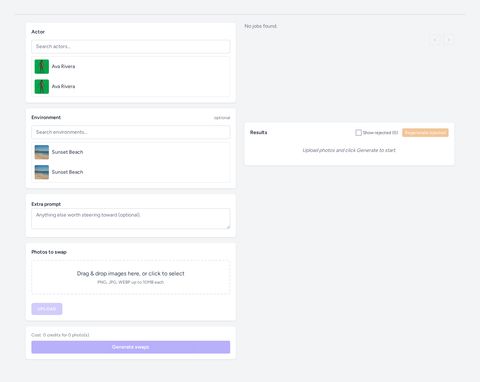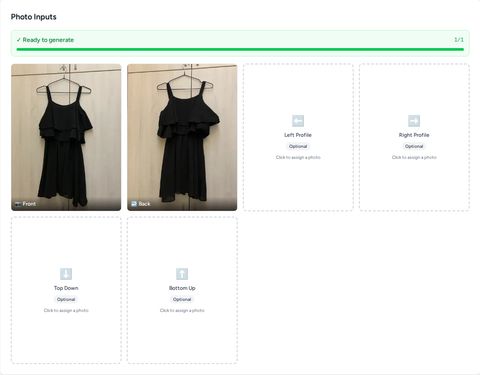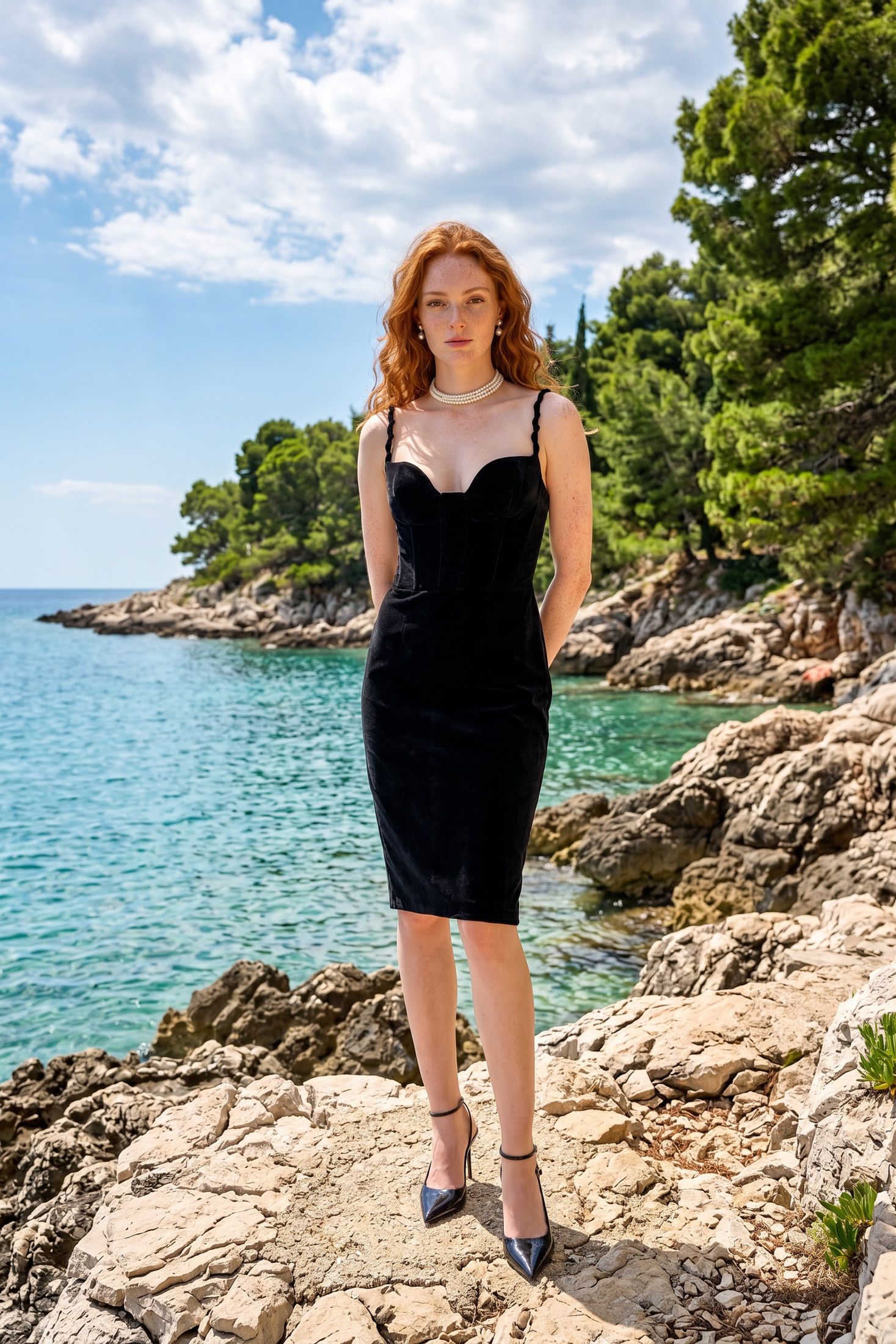
A virtual actor is a person you generate once and reuse in every shoot. The Actor Generator builds one in five steps and fills its five viewpoint slots with 2K images. Apparel projects and Person Swap draw on those slots.
After this guide, you know how to set an actor’s look from preset attributes. You also know how to pick a face, review the body poses and finalize the images.
Before you start
- You have a Vision account and belong to a team. See Set up your team in Vision if you have not done that yet.
- Your team has credits for the run. The actor in this guide costs 11 credits from start to finish. See Top up your credits in Vision to add more.
1. Create the actor element
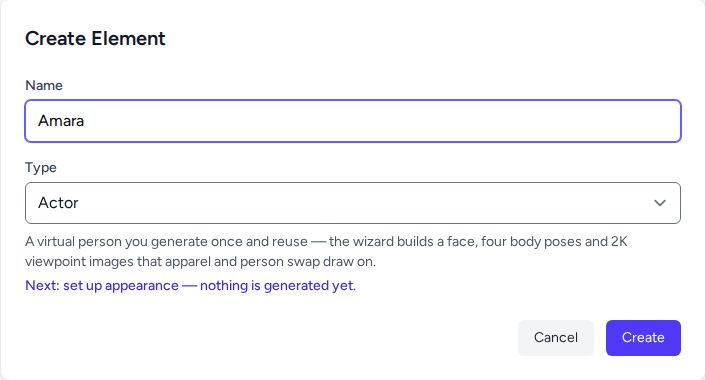
On the Vision Dashboard, click + New Actor. The Create Element form opens with Actor already set as the type.
Type a name for your actor and click Create. Nothing generates yet, so this step costs no credits.
2. Set the attributes
The Virtual Actor Generation wizard opens on Attributes, the first of five steps. Every value comes from a fixed list. You write no prompt.
Set the identity, body and hair fields:
- Gender and Age Range
- Height and Body Shape
- Hair Style, Hair Length and Hair Color
Fine-tune appearance holds skin, face details and makeup. Vision fills those with sensible defaults. Open it when the look depends on them, like skin tone or eye color. Close it again once you have set them. The Preview line under the fields sums up the actor in one row.
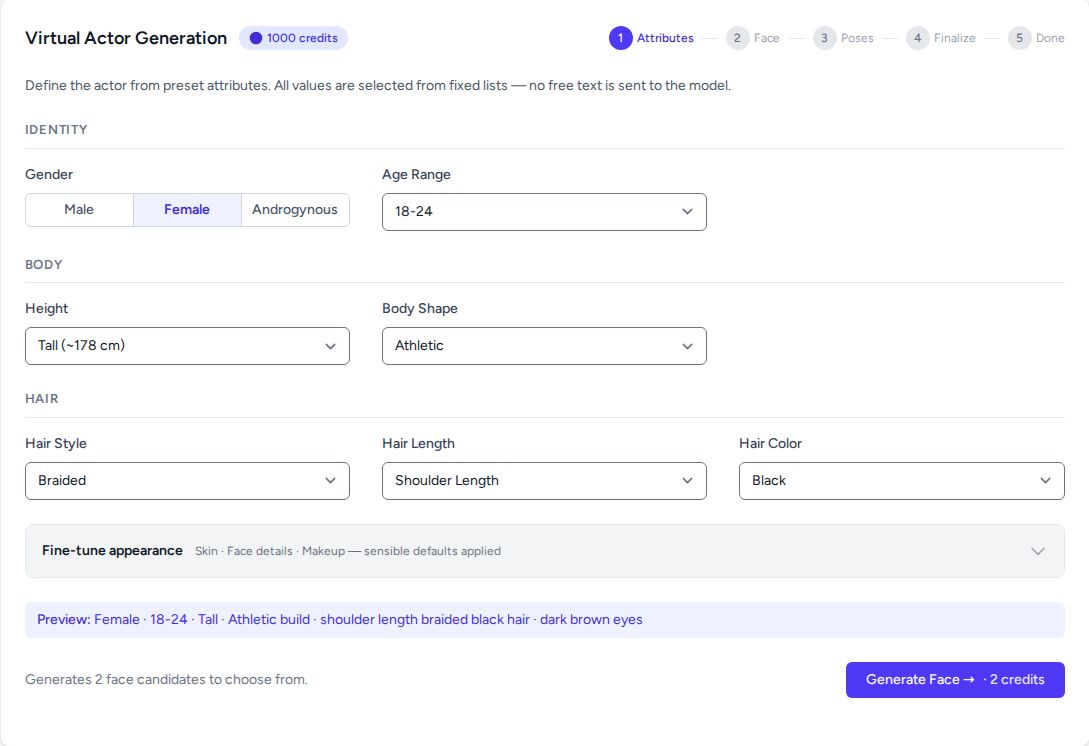
Click Generate Face and confirm the charge. The button shows the price, 2 credits for two face candidates.
Tip: Check the Preview line before you generate. It reads back your choices in plain words and catches a wrong dropdown before it costs a credit.
3. Pick a face
The Face step shows two candidates. Click the one you want. A check mark appears in its corner. Use Preview under a candidate to see it full size.
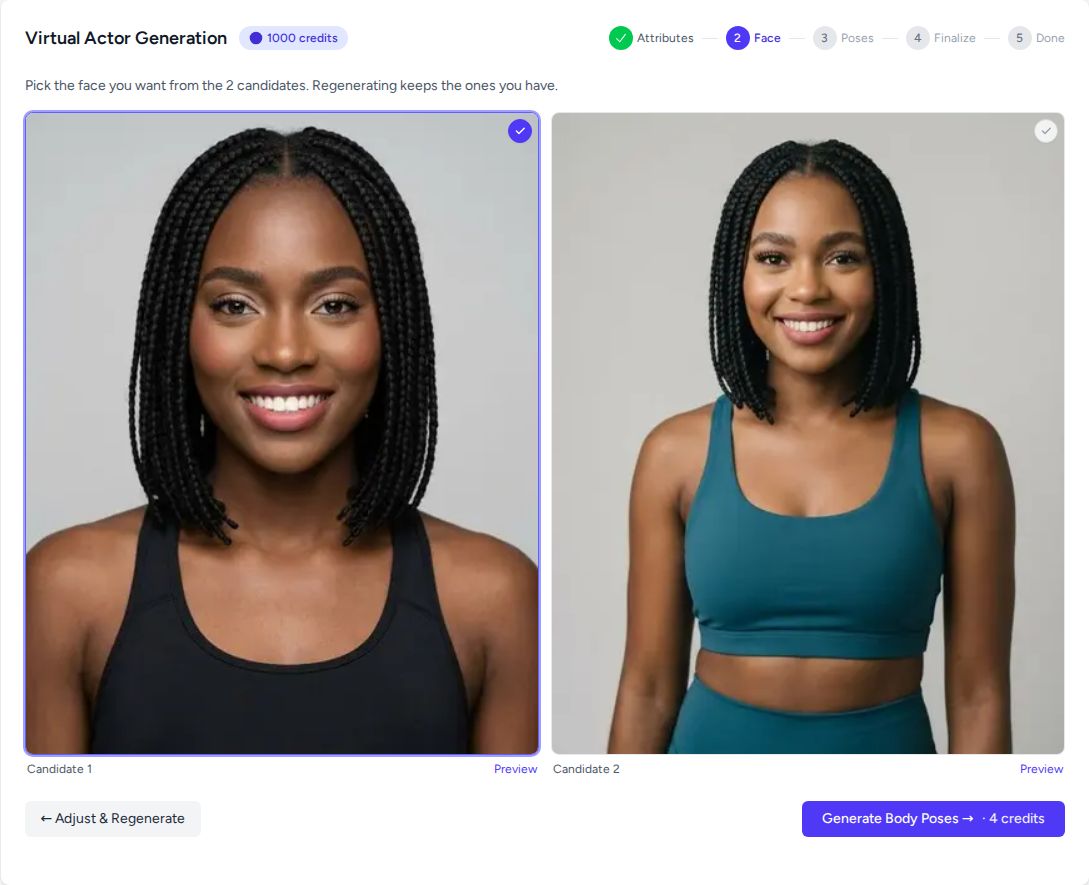
If neither face fits, click Adjust & Regenerate to change the attributes and try again. Vision keeps the candidates you already have.
When you have your face, click Generate Body Poses and confirm the 4 credits.
4. Review the body poses
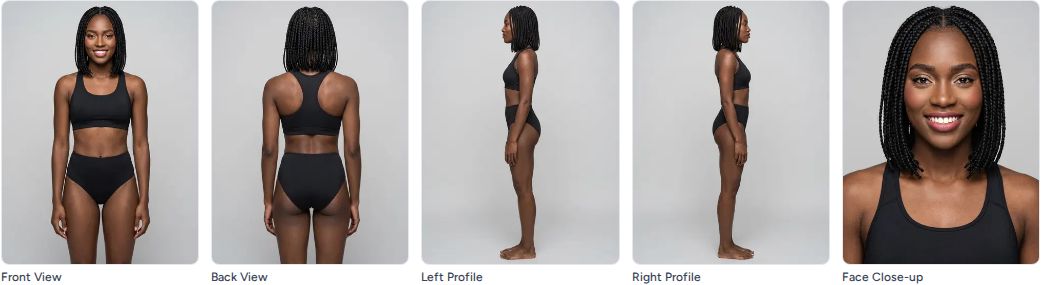
The Poses step shows the face close-up next to four A-pose body views. These are Front View, Right Profile, Left Profile and Back View.
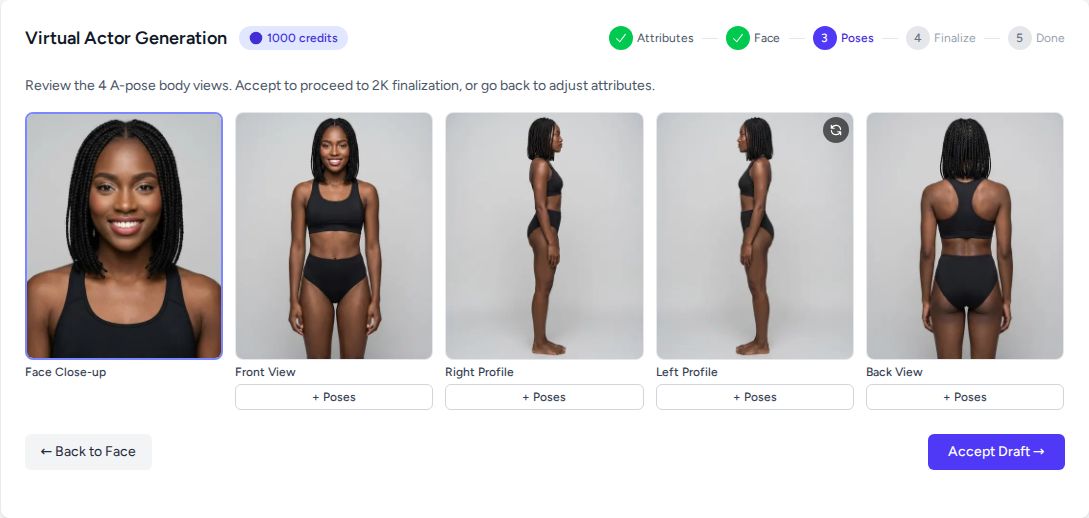
Check that the body matches the face and the attributes you set. Click Back to Face to choose another face. When the set looks right, click Accept Draft.
5. Finalize at 2K
The Finalize step lists the five images with a checkbox each. All five start selected. Vision refines every checked image to 2K and assigns the five standard views to the actor’s viewpoint slots.
The summary bar shows the math before you spend anything. Here it reads 5 selected at 1 credit each, 5 credits in total. It also shows your balance after the run.
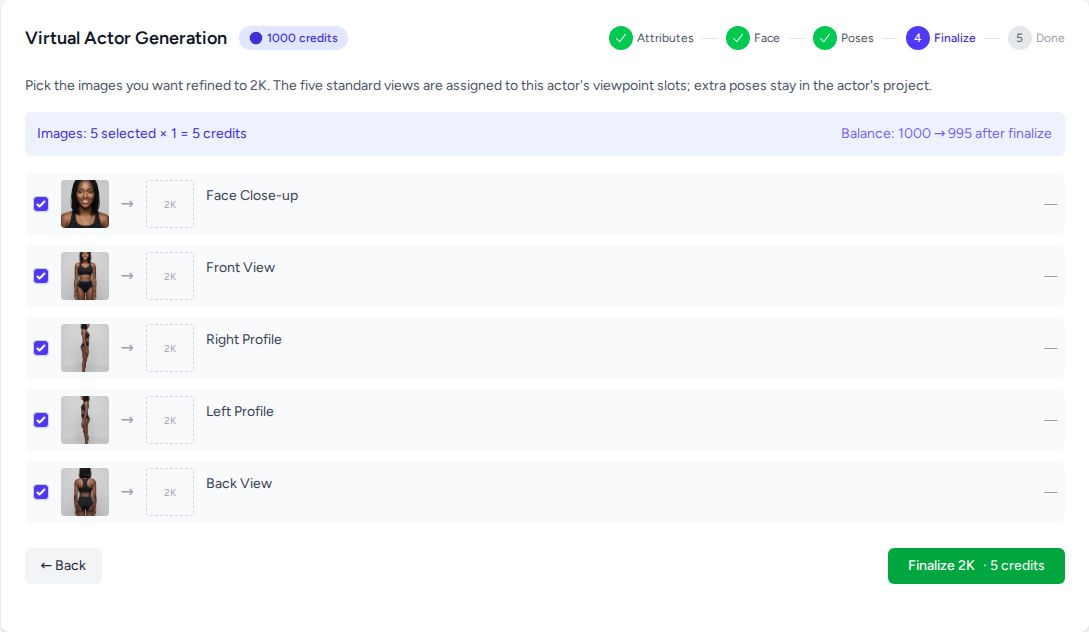
Click Finalize 2K and confirm.
6. Open the viewpoint slots
The Done step confirms the actor is finalized and names the slots each image fills.
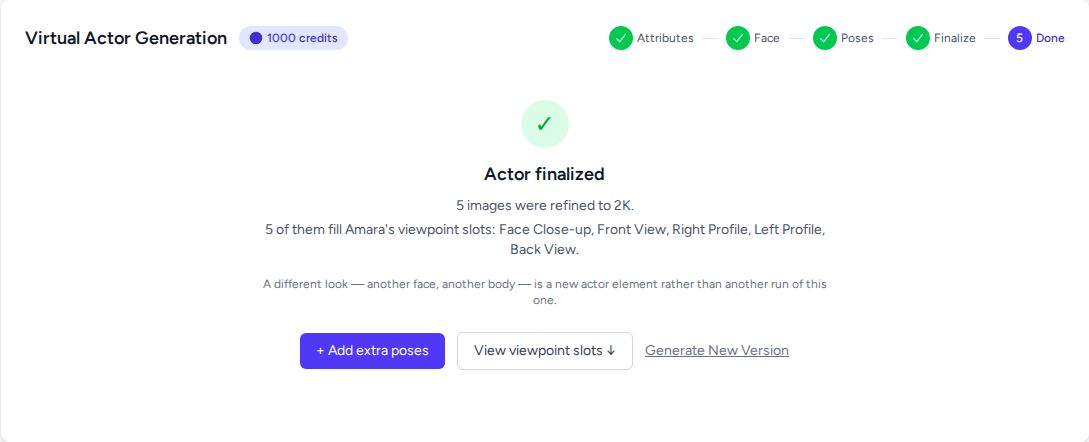
Click View viewpoint slots to see the result. Front View, Back View, Left Profile, Right Profile and Face Close-up now each hold a 2K image.
Tip: A new look needs a new actor. Another face or another body is a separate actor element, so start again from + New Actor. Use + Add extra poses on the Done step for more angles of this same actor.
Next steps
Your actor is ready to wear clothes. Add a garment in Add an apparel product in Vision and shoot it in Run an apparel photoshoot in Vision. You can also put the actor into an existing photo with Swap the person in a product image in Vision.