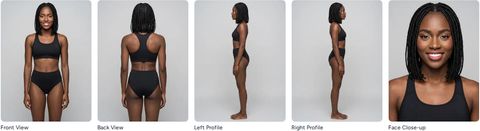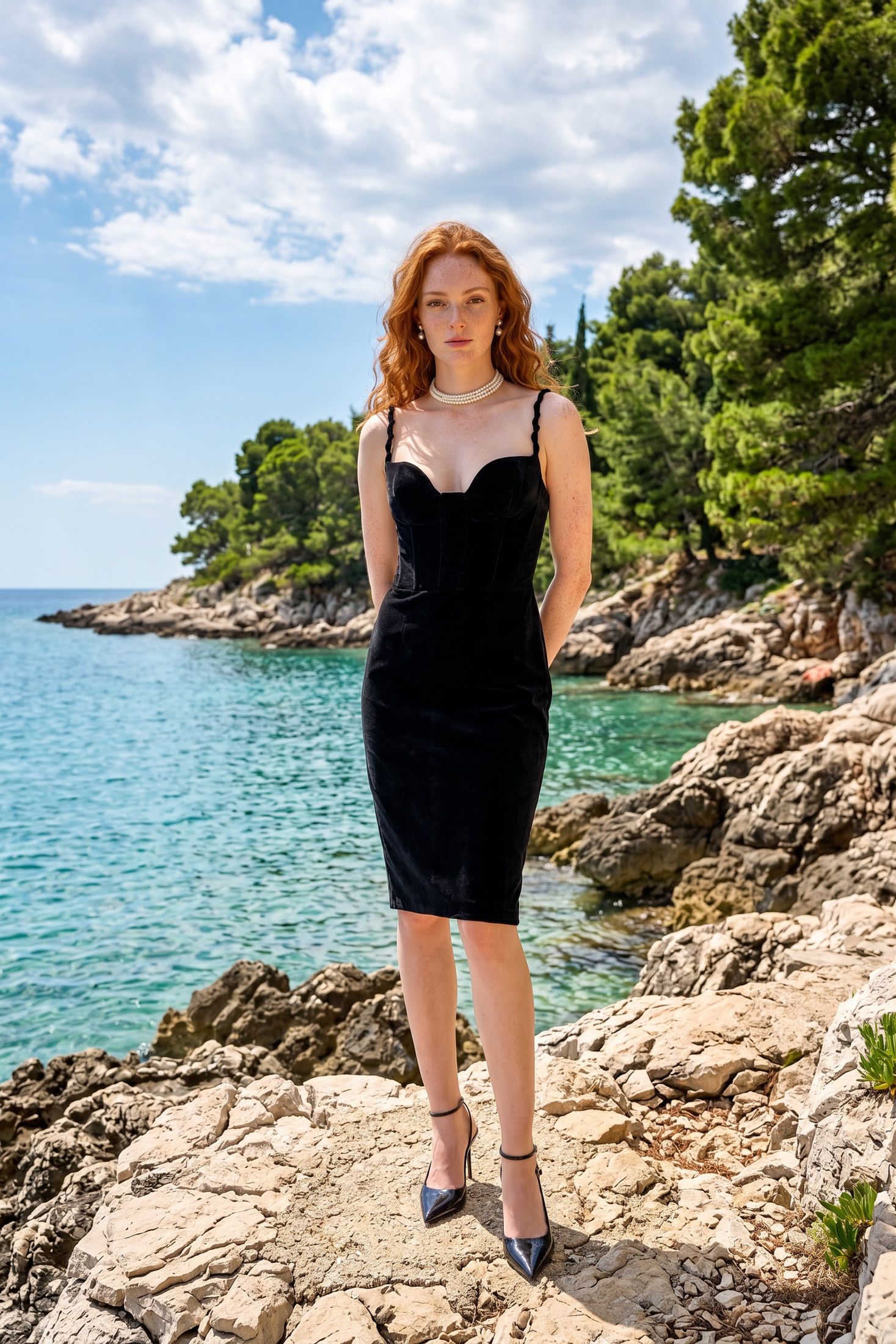
An apparel product is a garment Vision dresses your actors in. You describe it once and upload its photos. Every apparel project can then use it.
After this guide, you know how to create a product from the Apparel Studio and set its type and fit. You also know which photos Vision needs before it can generate.
Before you start
- You have a Vision account and belong to a team. See Set up your team in Vision if you have not done that yet.
- You have a photo of the front of the garment. A back photo is optional but helps back-facing poses. A garment on a hanger against a plain wall works.
1. Create the product
On the Vision Dashboard, find the Apparel Studio and click + New Apparel Product. The Create Element form opens with Product already set as the type.
Type the garment’s name. Use the words a shopper would use, like Black Summer Dress. Vision reads the name in the next step.
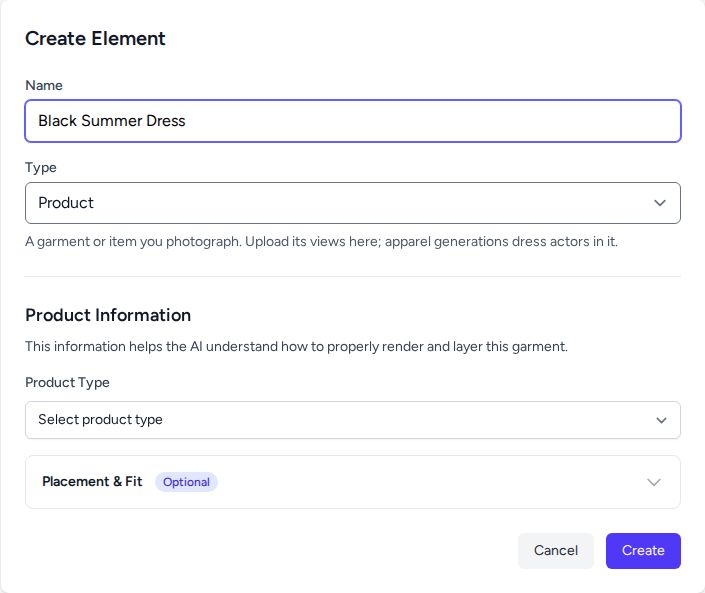
Click Create. Vision opens the product’s edit page.
2. Check the suggested product type
Under Product Information, Vision suggests a Product Type from the name. A dress becomes One Piece. The Suggested label marks the field, and the hint under it names the word Vision matched.
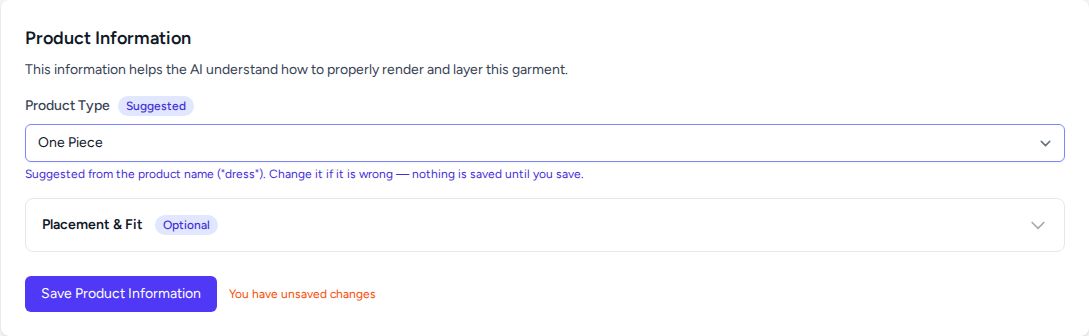
Change the type if the suggestion is wrong. Vision saves nothing until you click save.
3. Set placement and fit
Placement & Fit is optional. Open it to tell Vision where the garment sits on the body and how it fits.
- Pick a Body Placement. A dress worn next to the skin is Torso (Inner Layer).
- Pick one or more Fit options: Regular, Slim, Oversized, Skinny, Tailored or Athletic.
The choices appear as labels next to the Placement & Fit heading, so you can check them with the section closed.
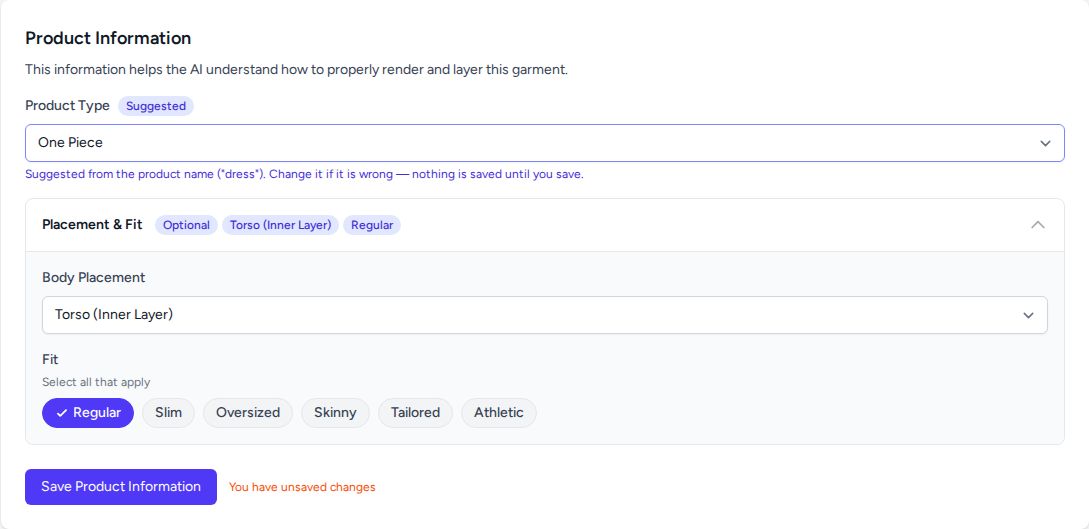
Click Save Product Information. The Suggested label disappears once the type is saved.
Tip: Placement matters most when an actor wears several garments. Vision uses it to layer pieces in the right order.
4. Upload the photos
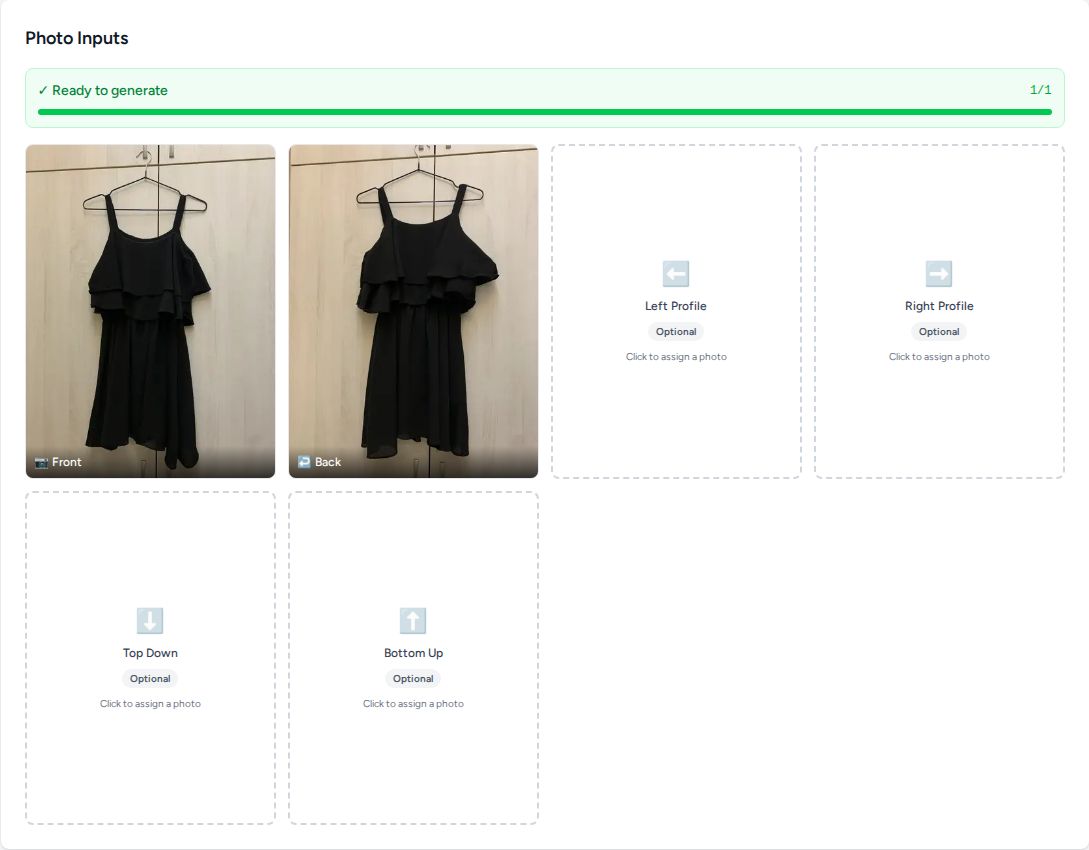
Scroll to Photo Inputs. Each slot is a viewpoint of the garment. Front is required. Back, Left Profile, Right Profile, Top Down and Bottom Up are optional.
- Click the Front slot and upload the front photo.
- Click the Back slot and upload the back photo.
Each photo appears in its slot once the upload finishes. The bar at the top turns green and reads Ready to generate as soon as the Front slot is filled.
Tip: Fill the Back slot whenever you have the photo. It gives Vision the real back of the garment for back-facing poses.
Your product saves its type, placement, fit and photos. Reload the page and they are all still there.
Next steps
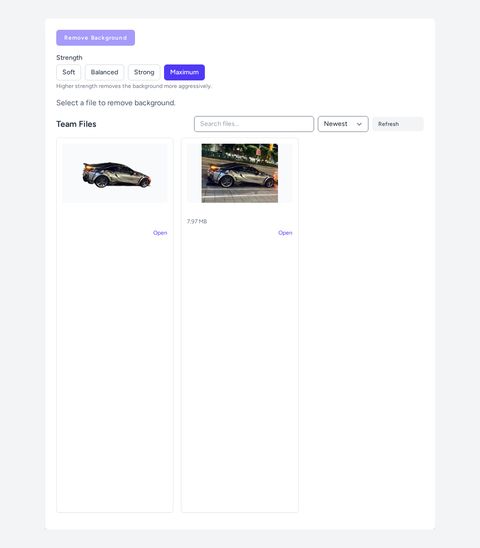
The garment is ready to wear. Build an actor with Create a virtual actor in Vision, then dress them in Run an apparel photoshoot in Vision. For a clean cutout of a product photo, see Remove image backgrounds with AI in Vision.