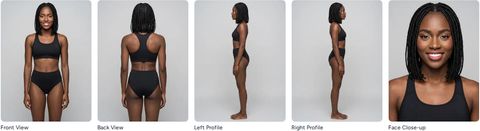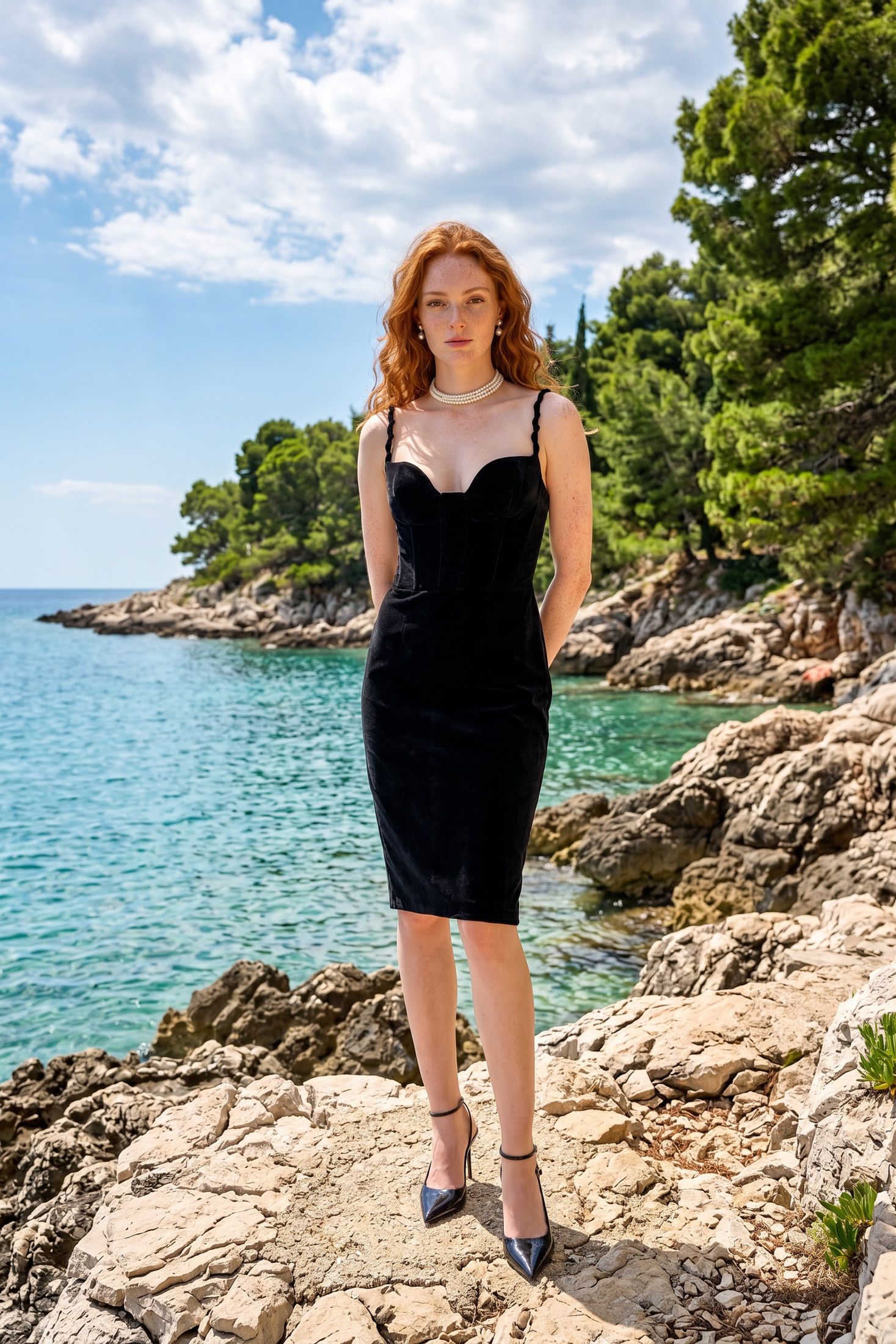
An apparel project is the photoshoot. You choose who wears the clothes, where they stand and how they pose. Vision generates one finished photo for every combination.
After this guide, you know how to cast a shoot, dress the actor and read the price before you generate. You also know where the results land and how to open one full size.
Before you start
- You have a finalized actor. Create a virtual actor in Vision walks through it.
- You have at least one environment, the place the shoot happens.
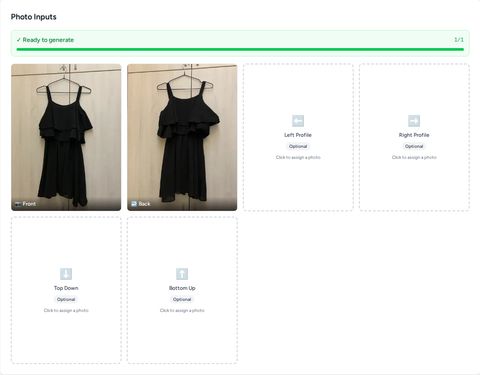
- You have one or more garments with photos. Add an apparel product in Vision covers that. A Front photo is enough for front-facing poses.
- Your team has credits for the shoot. This one costs 4 credits.
1. Create the project
On the Vision Dashboard, click Projects in the top navigation. On the Projects page, click Create.
Name the project, for example Summer lookbook. Set Type to Apparel and click Create.
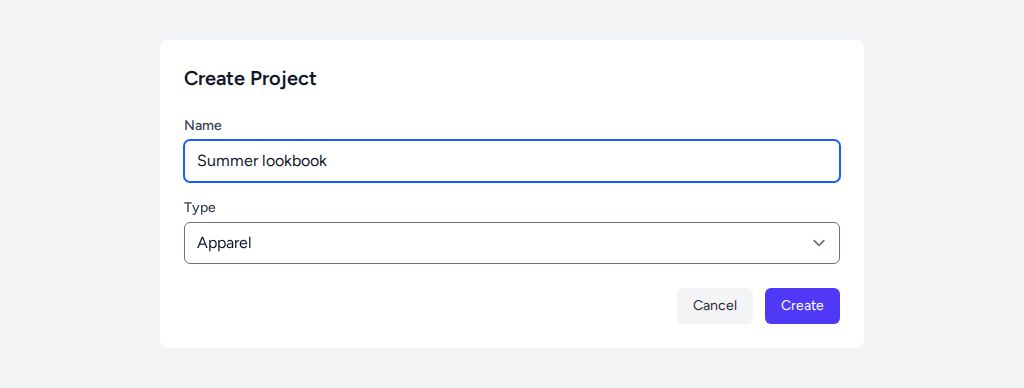
The project editor opens in Simple mode. Simple mode needs no prompt. You pick actors, environments, garments and poses. Expert mode adds a prompt field when you want more control.
2. Cast the actor and the environment
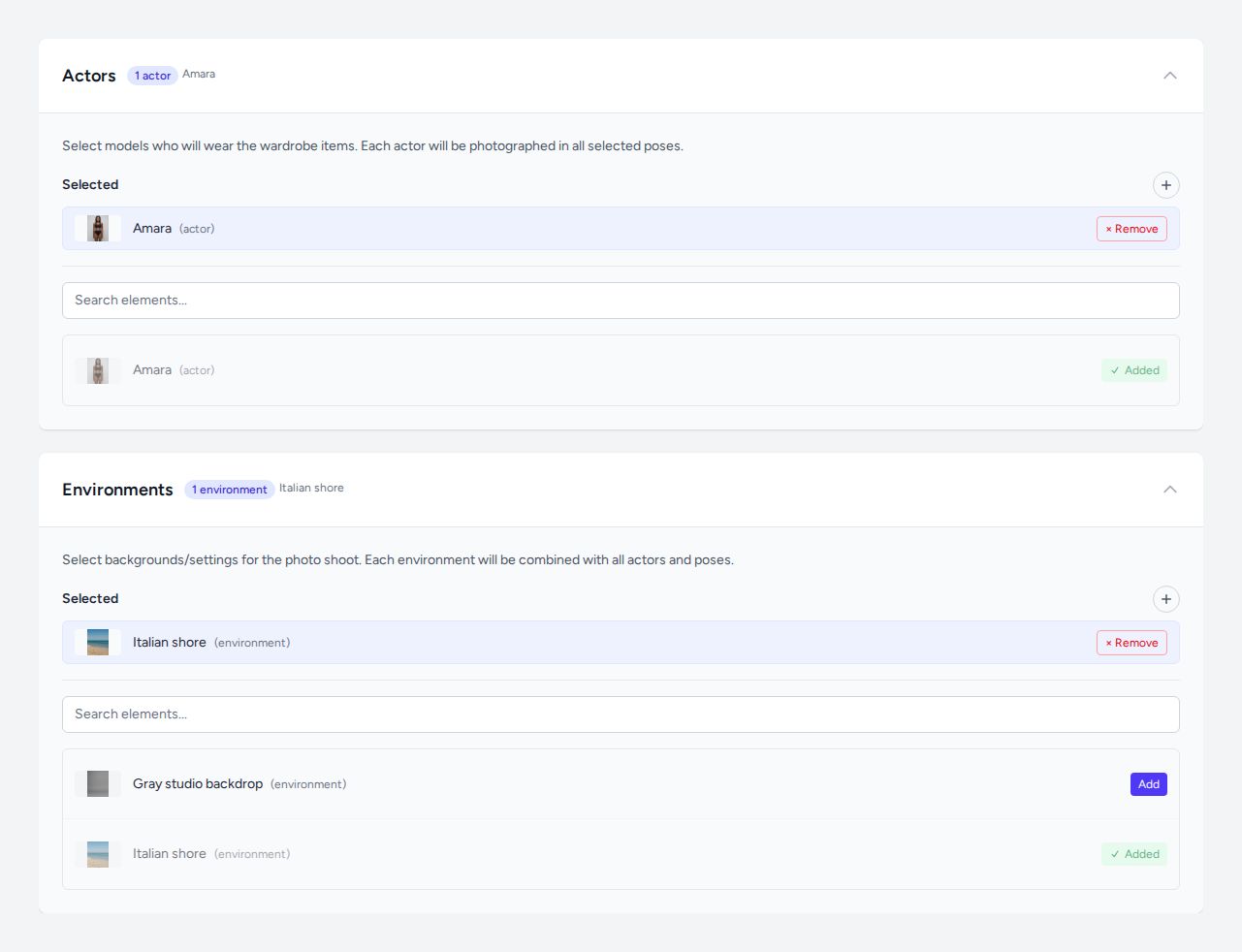
Open the Actors section. Find your actor under the search box and click Add. The row changes to Added, and the actor moves to the Selected list.
Open Environments and add a location the same way. Each environment combines with every actor and every pose, so a second location doubles the shoot.
3. Dress the actor
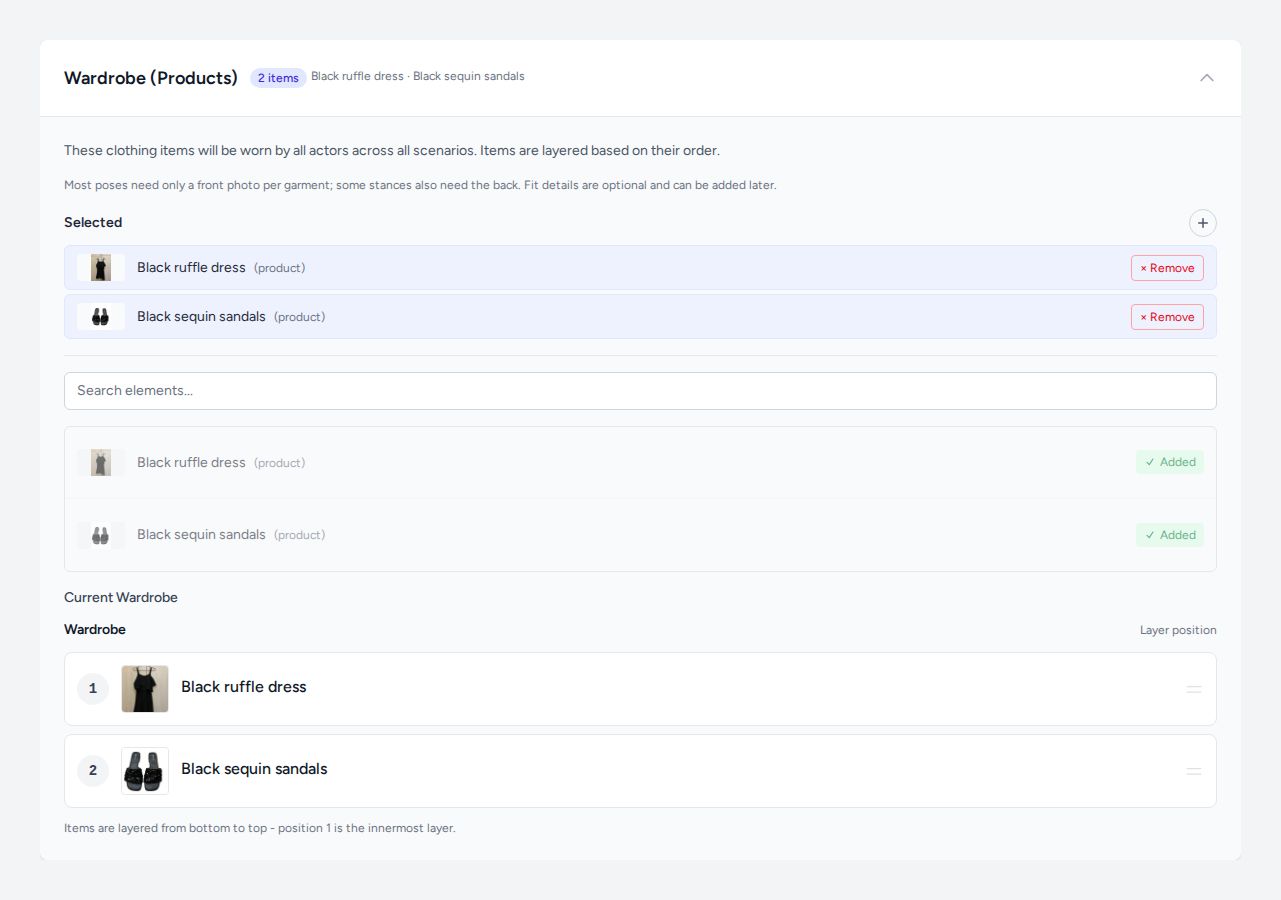
Open Wardrobe (Products) and add each garment with Add. Every actor wears the whole wardrobe in every shot.
Current Wardrobe lists the garments as layers. Position 1 is the innermost layer, so a dress sits at 1 and sandals at 2.
4. Choose the poses
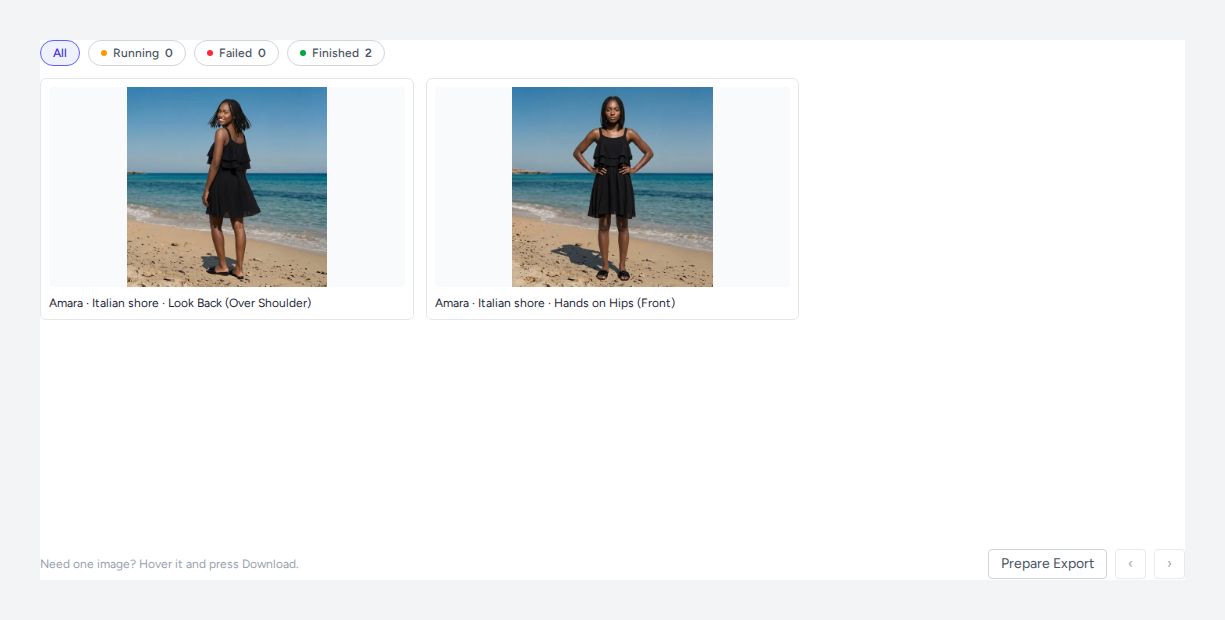
Open Actor Poses and select each pose you want. This shoot uses Hands on Hips (Front) and Look Back (Over Shoulder).
A pose shot from behind wants a Back photo of every garment. When one is missing, Vision puts a warning badge on that garment’s row and names the pose. Here the sandals have no Back photo, so the Look Back shot uses their front view. Generation goes ahead either way.
Tip: Add the missing Back photo to the product when the back of the garment matters. The warning disappears and the shot uses the real back.
5. Check the price
The pill next to the generate button counts the shoot before you pay. Here it reads 2 images · 4 credits. Click it to open the Generation Matrix.

The matrix lists every pose with its image count. It also shows the price per image and your team balance. One actor in one environment with two poses makes two images.
6. Generate the images
Click Generate Images. Vision charges the credits from the matrix and builds every shot.
7. Review the results
The finished photos land in the grid at the bottom of the project. Each caption names the actor, the environment and the pose. The filters above the grid split the shots into Running, Failed and Finished.
To grab one photo, hover it and click Download.
8. Open a photo full size
Hover a photo and click its full size button. The viewer shows the image large with a side panel.
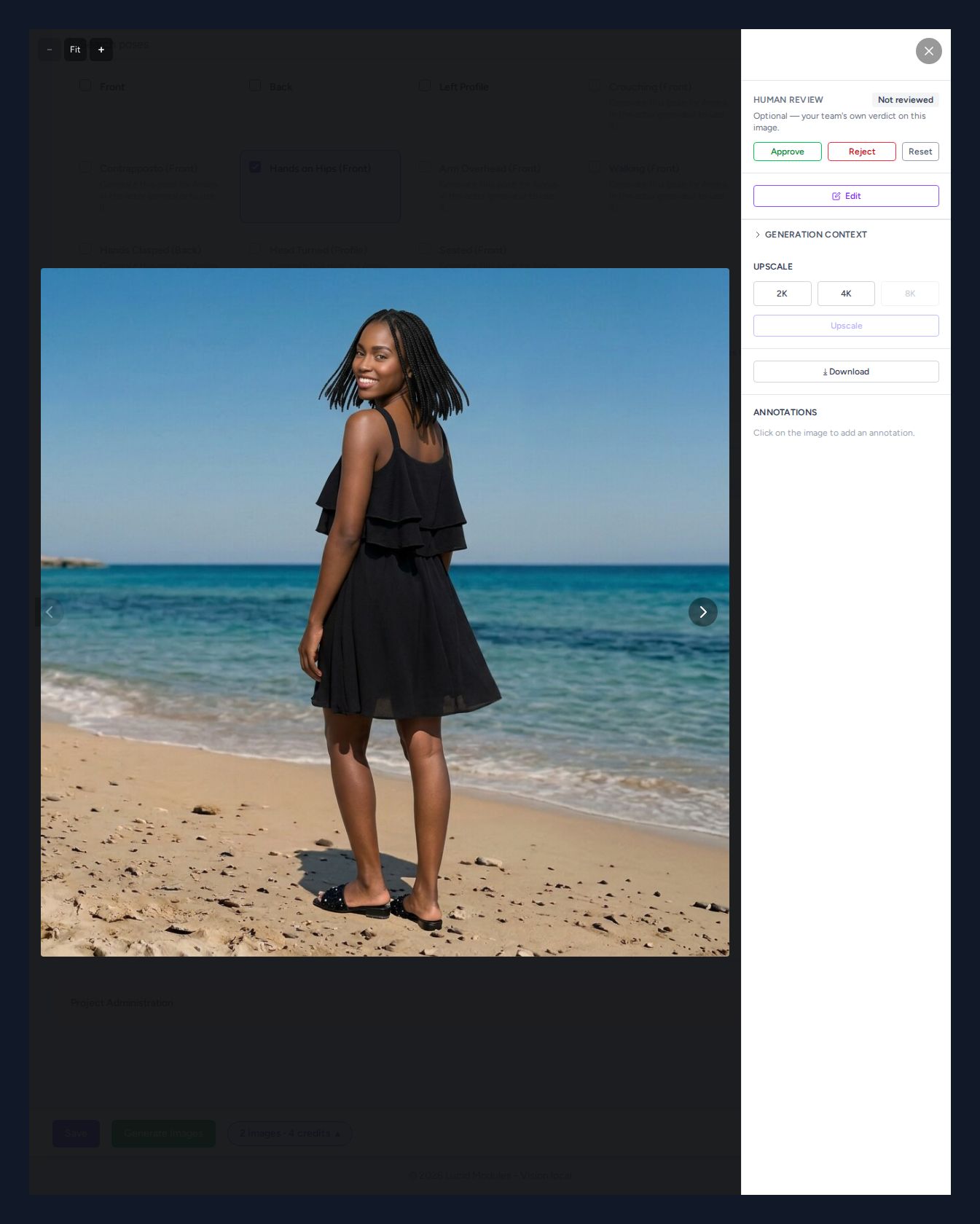
The side panel holds Upscale with 2K and 4K, and Download. Approve or Reject records your team’s verdict on the photo.
Tip: Upscaling costs credits. Review the photo at full size first and upscale only the keepers.
Next steps
Your first shoot is done. Add a second environment or more poses to the same project and generate again for a full lookbook.