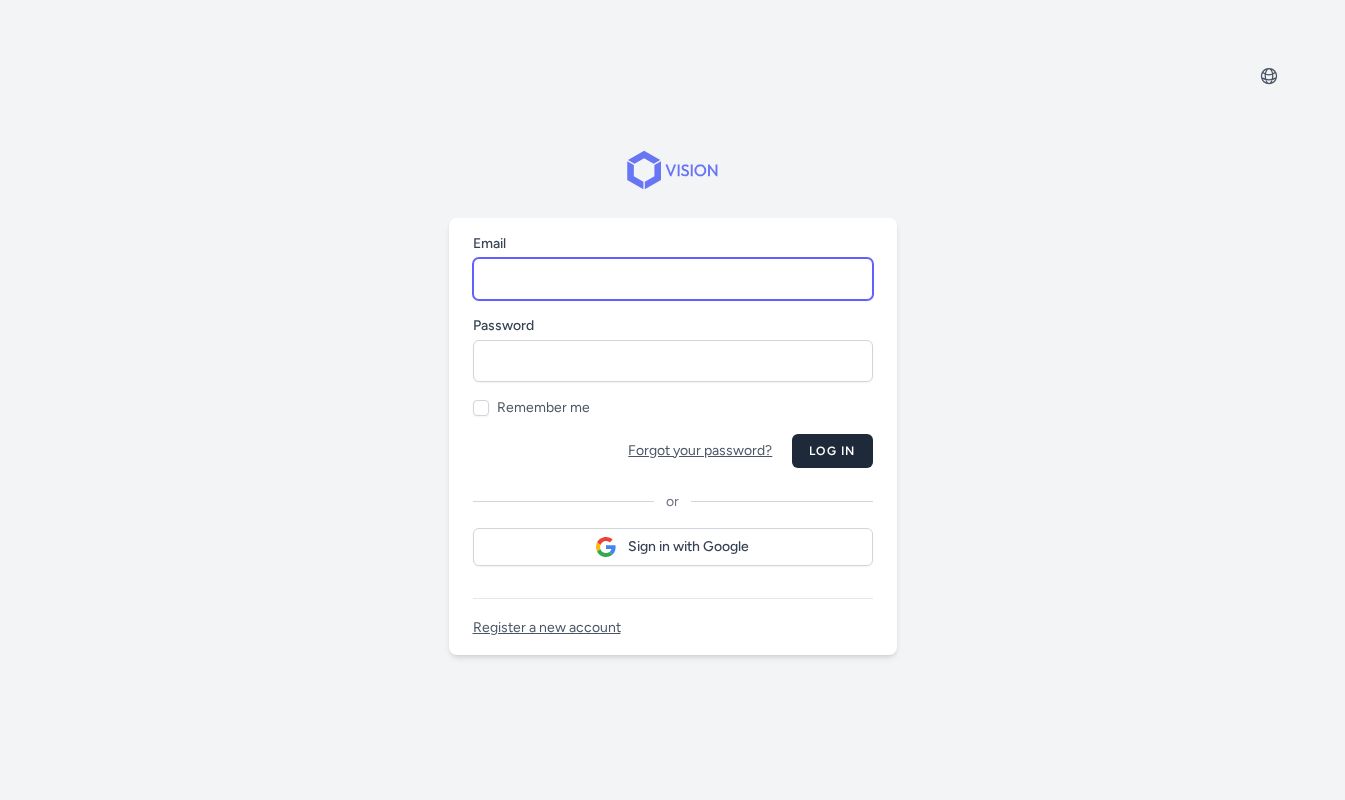
Sign in to Vision using your existing Google account for a faster, password-free experience. Instead of creating and remembering a separate Vision password, you authenticate through Google and land straight on your dashboard.
After this guide, you’ll know how to sign in with Google, what happens when Vision links your Google identity to an existing account, and what to do if the sign-in is blocked.
Before you start
- You need a Google account with a verified email address. Most Gmail accounts qualify automatically; accounts where Google itself could not verify the email address are blocked at sign-in.
- If you previously signed up for Vision with the same email address using a password, Vision will recognize and merge the two accounts automatically — you don’t need to do anything extra.
1. Open the Vision login page
Go to the Vision Dashboard. If you are not already signed in, Vision redirects you to the login page.
You’ll see the standard login form along with a Sign in with Google button below it.
Tip: If you have an existing Vision account with the same email, just proceed — Vision handles the merge in the background. You won’t lose any projects, assets, or credits.
2. Click “Sign in with Google”
Click the Sign in with Google button. Vision redirects you to Google’s authentication flow, where you select or confirm the Google account you want to use.
Tip: If you are already signed in to Google in your browser, the handoff is nearly instant — Google recognises you and sends you straight back to Vision without asking for your password again.
3. Confirm your Google account
Follow the prompts in the Google sign-in screen to choose your account and grant Vision the permissions it requests. Vision only asks for your name and email address — it does not access your Gmail, Drive, or any other Google data.
4. Land on your Vision Dashboard
Once Google confirms your identity, Vision signs you in and takes you directly to your Dashboard. From here you can open existing projects, upload assets, or start a new edit.
Tip: Subsequent sign-ins follow the same two-step flow — Vision login page, then the Sign in with Google button — and are typically faster because Google keeps your session active.
If sign-in is blocked: unverified email error
Occasionally, Google cannot confirm that an email address is verified (this is rare and affects certain non-Gmail accounts). When this happens, Vision does not complete the sign-in. Instead, you are returned to the login page with a banner explaining that Google could not confirm your email address is verified.
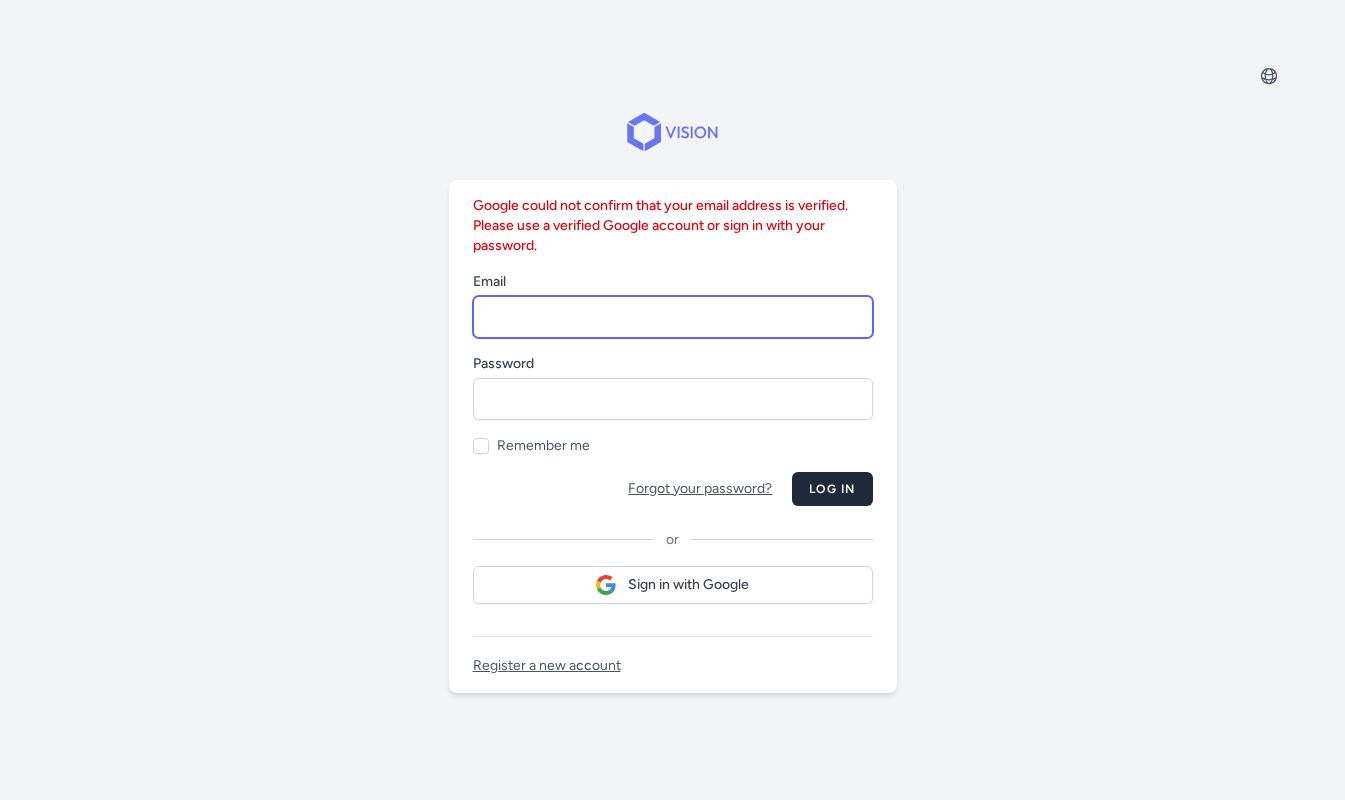
If you see this message, the most reliable fix is to sign in with your email address and password instead, or to use a Google account whose email Google itself has verified.
If you see a password error
The Sign in with Google button and the standard email-and-password form work independently. If you fill in your email and password and click Sign In, Vision validates those credentials normally. Entering incorrect credentials shows a field-level error message on the same page — this is separate from the Google OAuth flow.
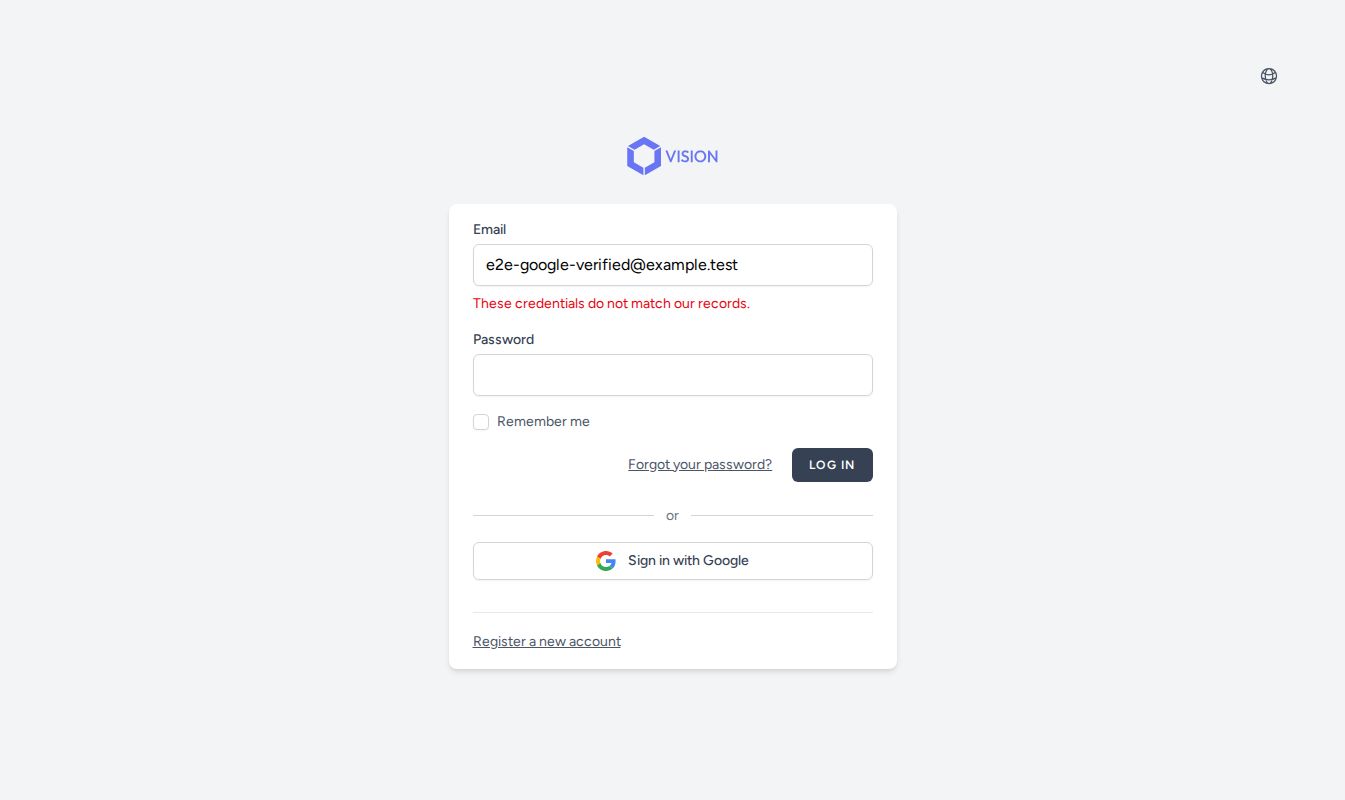
Tip: If you originally signed up via Google and never set a Vision password, use the Sign in with Google button rather than the password form — you won’t have a Vision password to enter.
Next steps
You’re signed in and on your Dashboard. A good next move is to check your team’s credit balance or browse your existing projects. If this is your first time in Vision, the Team Onboarding guide walks you through setting up your workspace, and Registration covers the other ways to create a Vision account.
All brand names are property of their respective owners and used for demonstration purposes only.