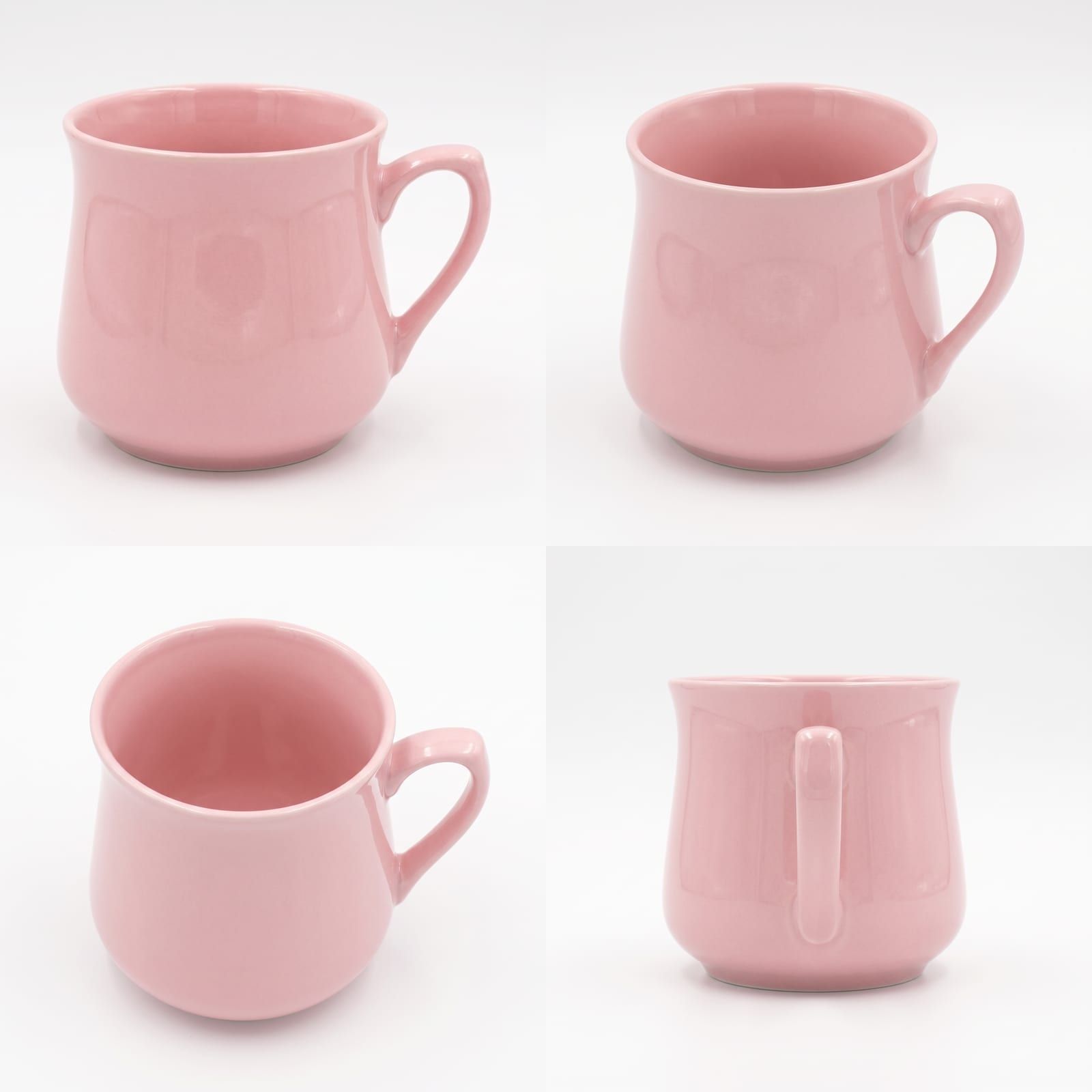
A packshot is the plain product photo a store listing starts with. The product sits alone on white, in even light, with nothing else in the frame. Vision makes a set of them from one photo of the product.
After this guide, you have four packshots of one product: front, three-quarter, elevated and handle side. You also know which sentence of the prompt to change for each angle.
Before you start
- You have the product saved in Vision with one clear photo. Add a simple product in Vision covers that.
- Your team is on a paid plan. The Free plan stops at 1K and lowers a 2K request to 1K without a message.
- Your team has credits. Each 2K image costs 2 credits, so this set of four costs at least 8. Every take you redo adds 2.
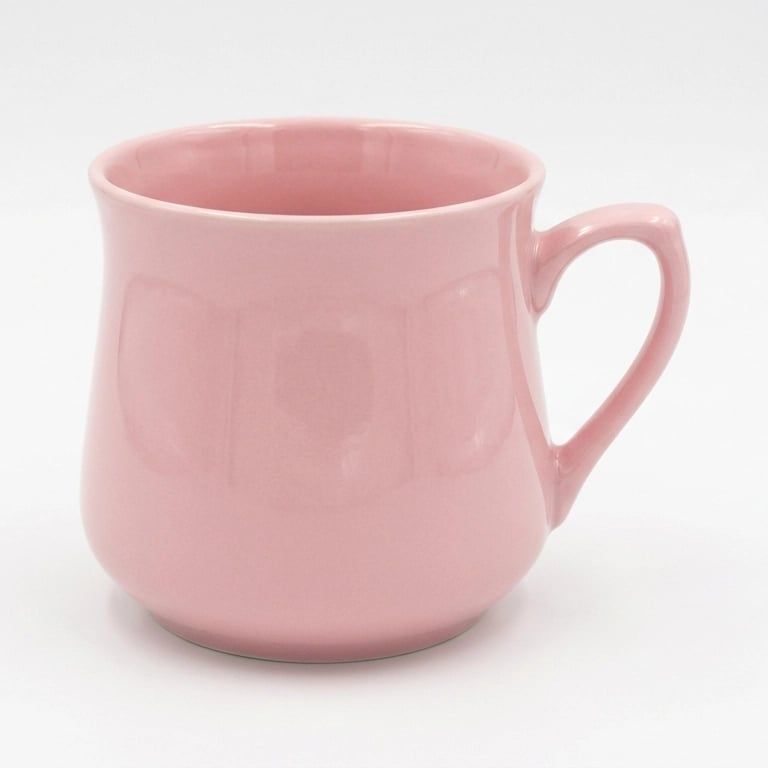
This guide uses a pink porcelain mug. The starting photo looks like this.
1. Create an Edit project with the product alone
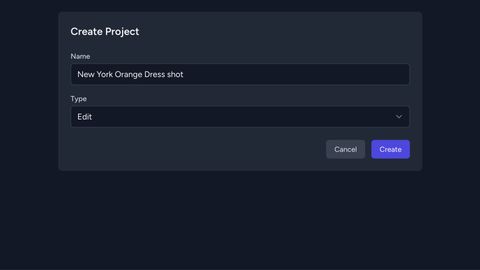
Create a project and pick Edit as the type. Create an Edit project shows the form.
Attach the product. Leave the actor and the environment empty. A packshot has no scene, and an attached environment pulls the product into one.
2. Set the frame
Pick Pro v2 as the model version. Set the resolution to 2K and the aspect ratio to 1:1. A square leaves equal margin on every side and fits most listing grids.
3. Write the packshot prompt
The prompt has five jobs. It names the product, fixes the background, sets the camera angle, describes the light and keeps the frame empty around the product. A front view reads like this.
The attached pink porcelain mug, empty and dry, centred on a pure white seamless background, seen straight from the front at eye level. The mug is the only object in the frame, with no props, hands, text or logo. The whole mug small in the frame with wide clean white margin on all sides. Even soft studio light from large diffusers, a faint soft contact shadow beneath the base, true colour and glaze. Real e-commerce product photograph, sharp focus, 85mm.
The second sentence matters. Without it the scene tends to gain a prop. A mug gets steam, a spoon or coffee. An Edit project has no negative prompt field, so what to leave out goes in the prompt itself.
4. Generate and check the first packshot
Generate the image. Then compare it with your starting photo before you go on.
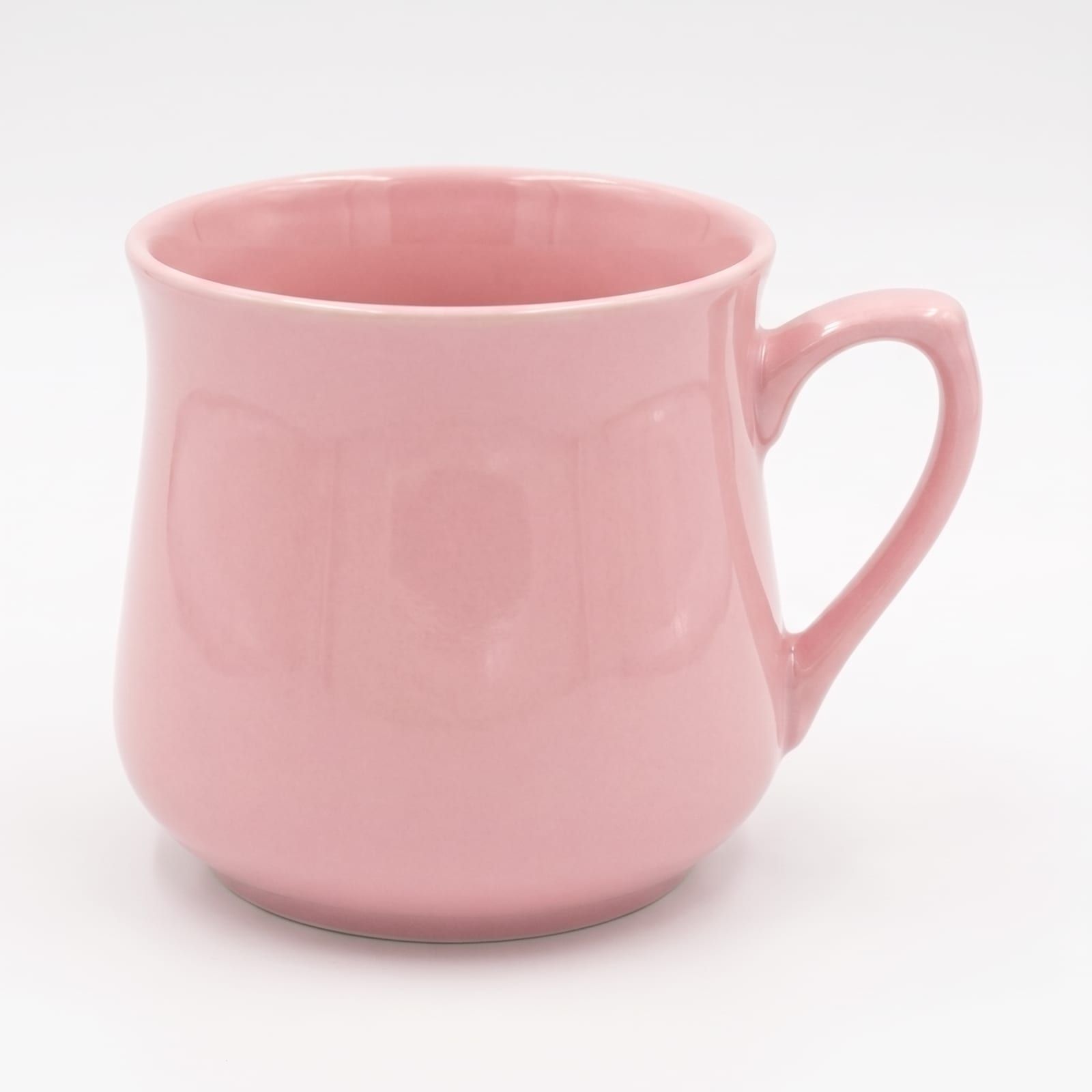
Check three things:
- the shape matches, including the handle and the rim
- the color matches the real product
- the background is white to every edge, with one soft shadow under the base
Reject the image if any of the three is off. Then fix the cause before you try the other angles. Every angle starts from the same product photo and the same prompt, so a weak photo or a loose description shows up in all four.
5. Change the angle and generate again
Keep the project. Change only the sentence that sets the camera, then generate. The background, the light and the empty-frame sentence stay the same. That is what makes the four images a set.
The camera sentences below show the pattern. The handle-side one is the exact sentence this set used.
For a three-quarter view:
…turned about 30 degrees so the camera sees the front and part of the side, the handle to the right.
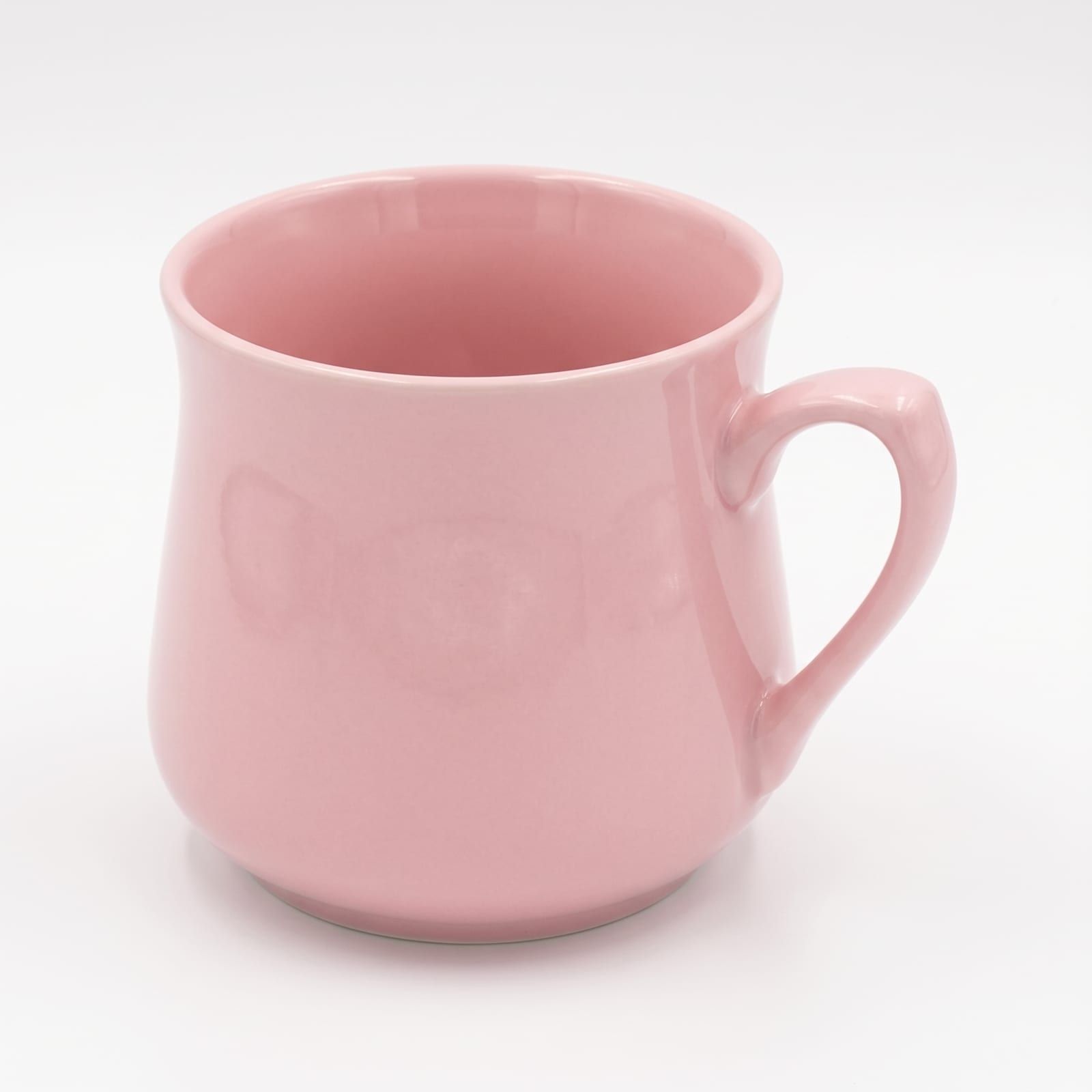
For an elevated view that shows the inside:
…seen from above at about 45 degrees so the opening and the inside of the mug are visible.
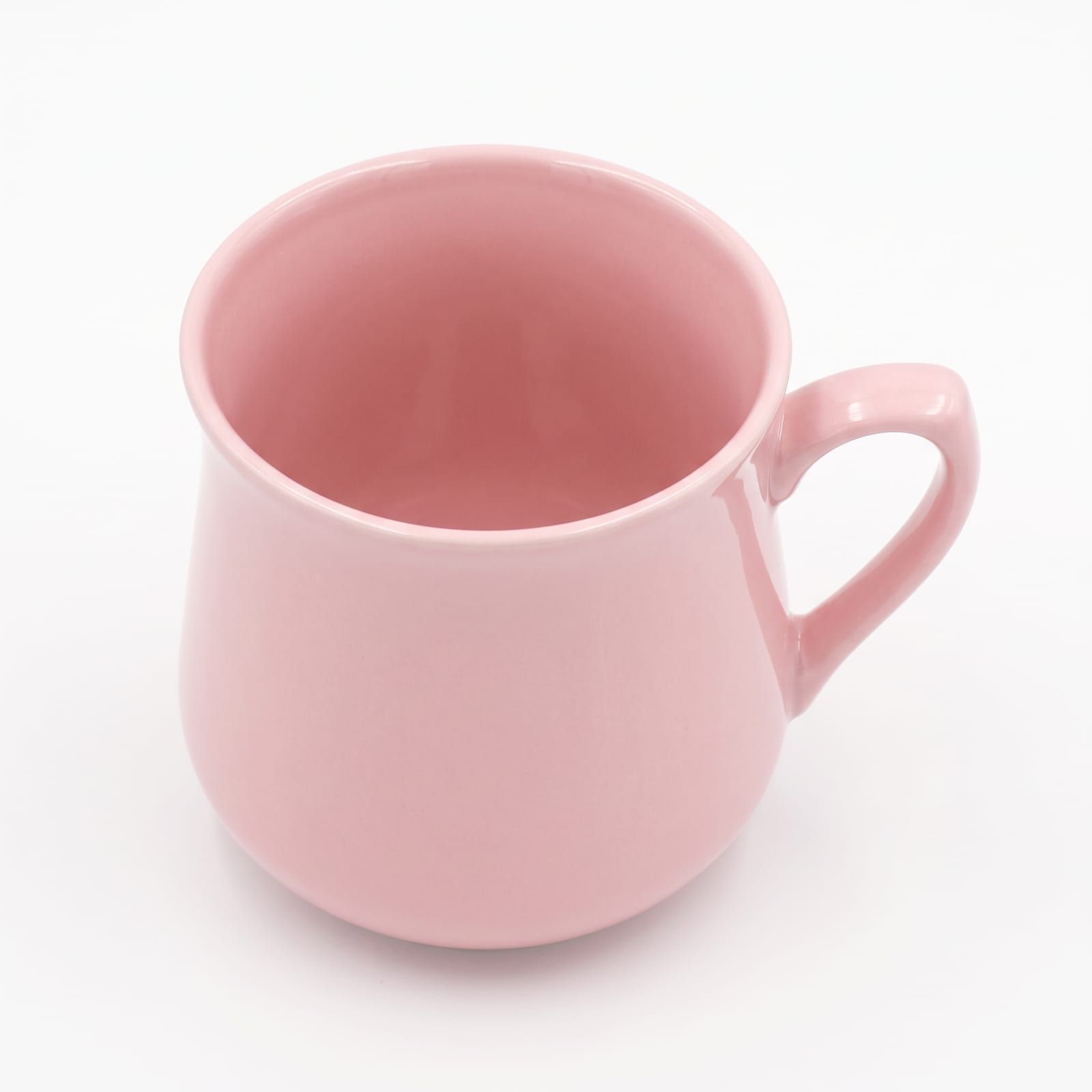
For the handle side:
…rotated exactly 90 degrees from its front so the camera sees it from the side: the handle sticks out to the right edge in flat profile, and the opening is seen edge-on.
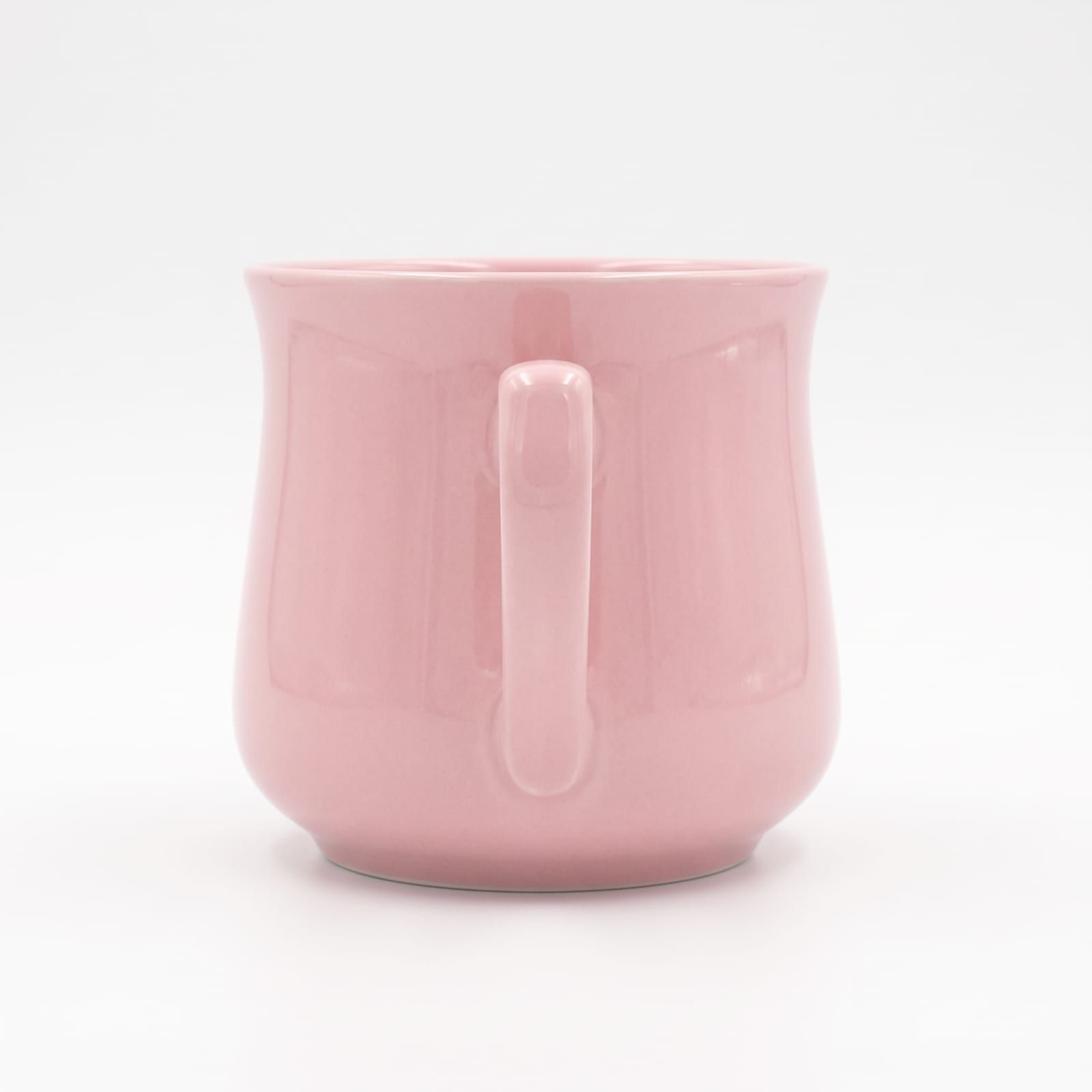
Look at the last image against its prompt. The prompt asks for the handle in profile at the right edge. The result turns the handle to face the camera. It is a clean packshot of the handle side, so we kept it. When the angle matters, say it in plainer words and generate again.
6. Approve and download the set
Approve the four you keep and reject the rest. Then download them one by one, or export the approved images as a ZIP.
Tip: Vision invents the sides of the product it cannot see in your photo. One front photo gives a believable back, not a true one. Upload a second photo of any side that carries a logo, a label or a pattern.
Where to go next
- A packshot on a transparent background starts from the same image. Remove image backgrounds with AI in Vision cuts it out.
- The same product goes into a scene with one more step. Attach an environment to an Edit project and describe the room.